Five-minute preparation
- The device is switched on, updated and connected to the internet.
- You know which input the device uses on your TV (for boxes and sticks).
- Your phone with the WhatsApp chat is next to you – the details arrive there.
- You have run a speed test in the room and noted the result.
Step 1: Check the device
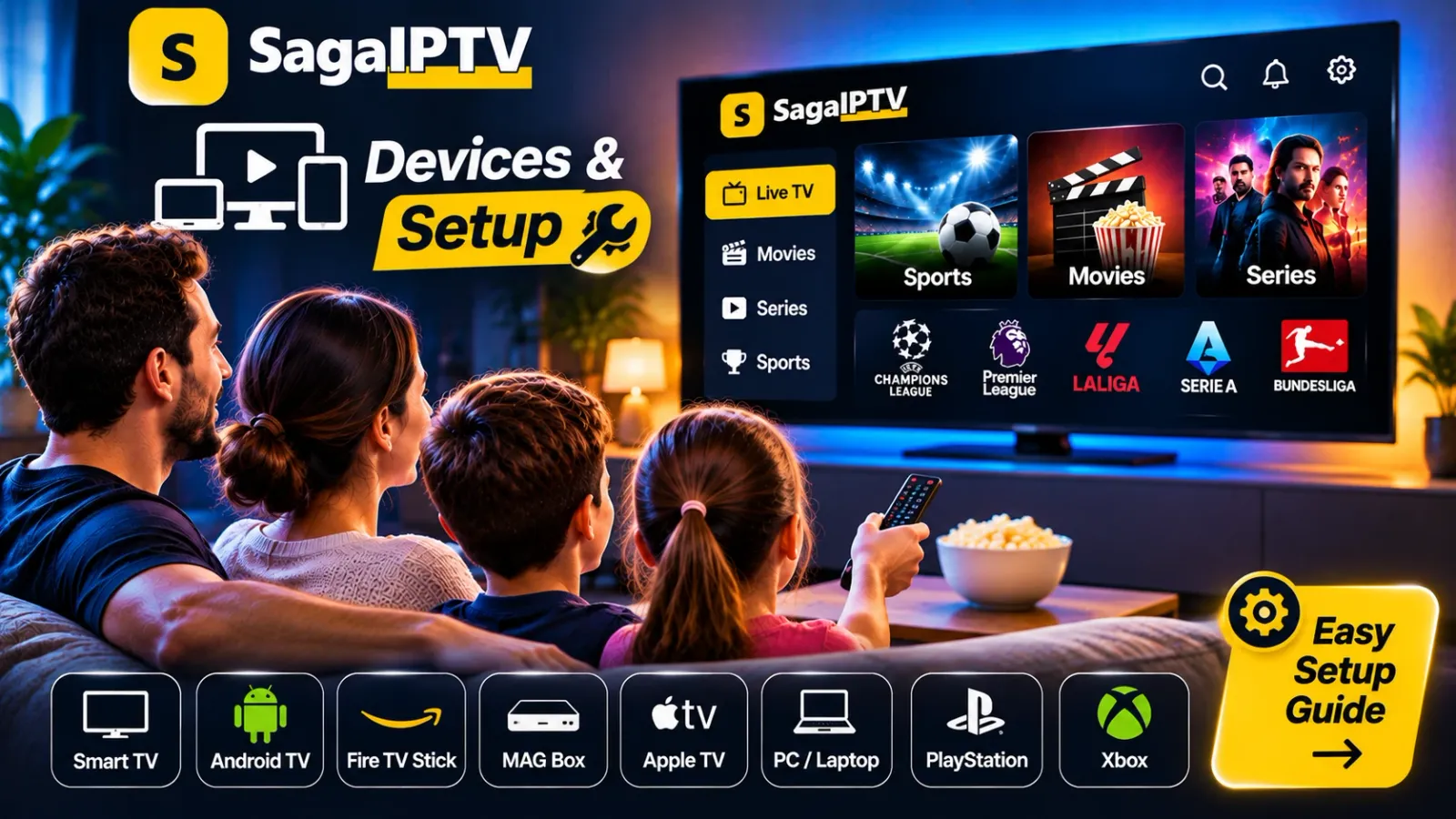
Find the brand, model and operating system and send them to us before you order. That way you know the setup can be done. The Devices page lists what we need.
Step 2: Get your instructions
Once your order is confirmed, you receive your account details and a description that fits your device in the WhatsApp chat. Keep the message. The details are personal and should not be shared with anyone.
Step 3: Install the app
Install the app we tell you to use, and download it from the device’s official app store. A few things make it easier:
- Update the device’s software first.
- Check that the date, time and region are set correctly.
- Make sure there is free storage space.
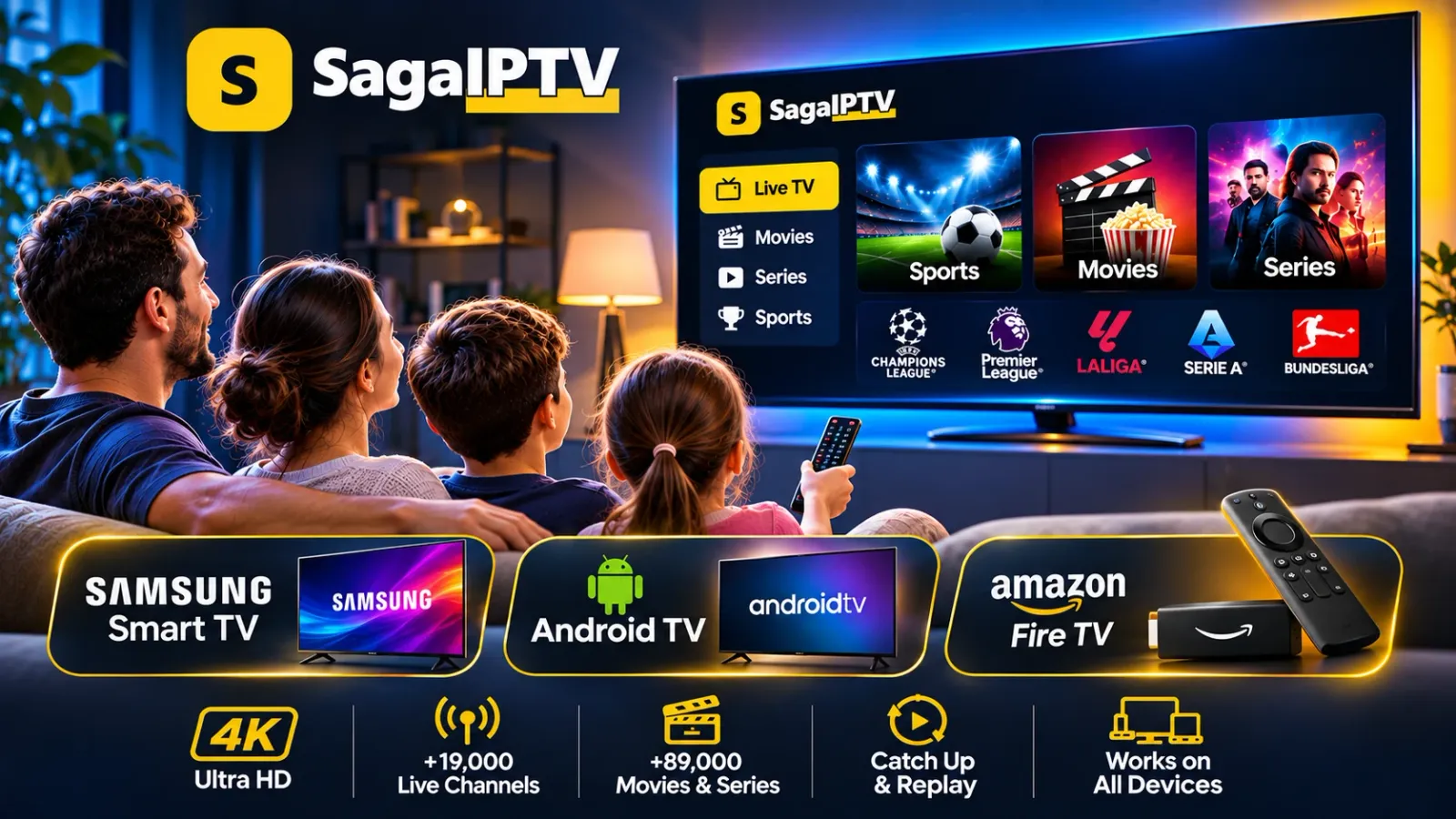
We have written general guides for Samsung Smart TV, Android TV and Amazon Fire TV. They cover the settings on the device itself; anything specific to your account comes from us.
Step 4: Enter the details
Type the details exactly as you received them. Upper and lower case matter, and one stray space is enough for the login to fail. Copy and paste where you can.
Step 5: Test the connection
Start a broadcast and let it run for a few minutes. Is the picture stuttering? Try a network cable or move the router closer. The guide Troubleshooting buffering has a checklist.
Typical problems and what solves them
| Problem | Most likely cause | What to do |
|---|---|---|
| Login fails | A typing error, an extra space or wrong upper/lower case | Copy the details instead of typing them |
| The app is not in the store | Model or region not supported | Tell us the model; do not install from unknown sources |
| Picture stutters | Weak Wi-Fi or a busy home network | Try a cable or move closer to the router |
| It worked yesterday, not today | Device or router needs a restart | Restart both, then try again |
Keep it running well
- Install device and app updates when they are offered.
- Restart the router and the device now and then; it clears small faults.
- Keep the message with your details, and never share them.
- One account plays on one screen at a time. If you change to a new device, tell us and we help you move.
Support is available on WhatsApp around the clock, so you can write when the problem happens instead of waiting for office hours.
Stuck?
Message us and tell us which step you are on. A photo of the error message saves time for both of us.