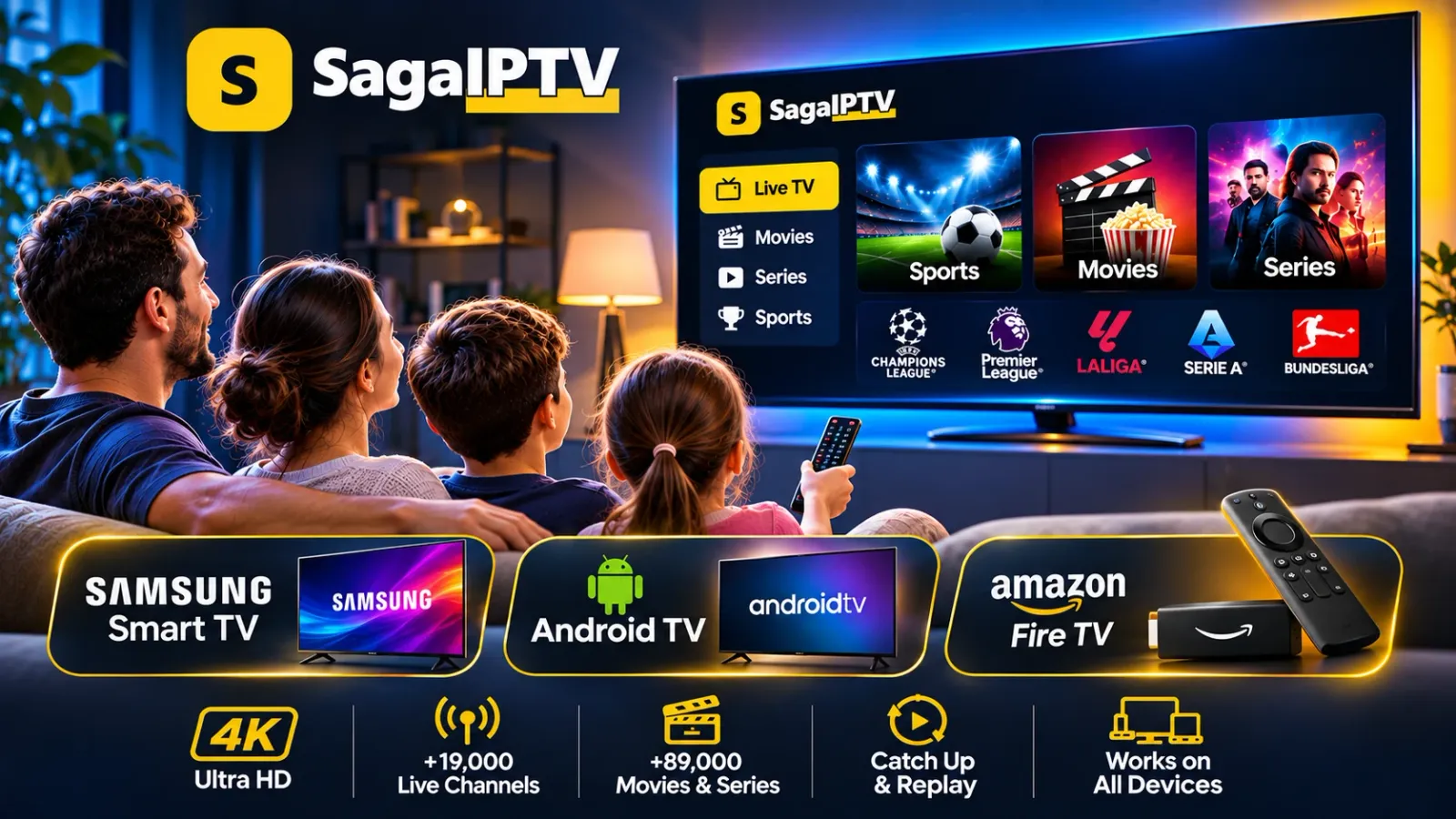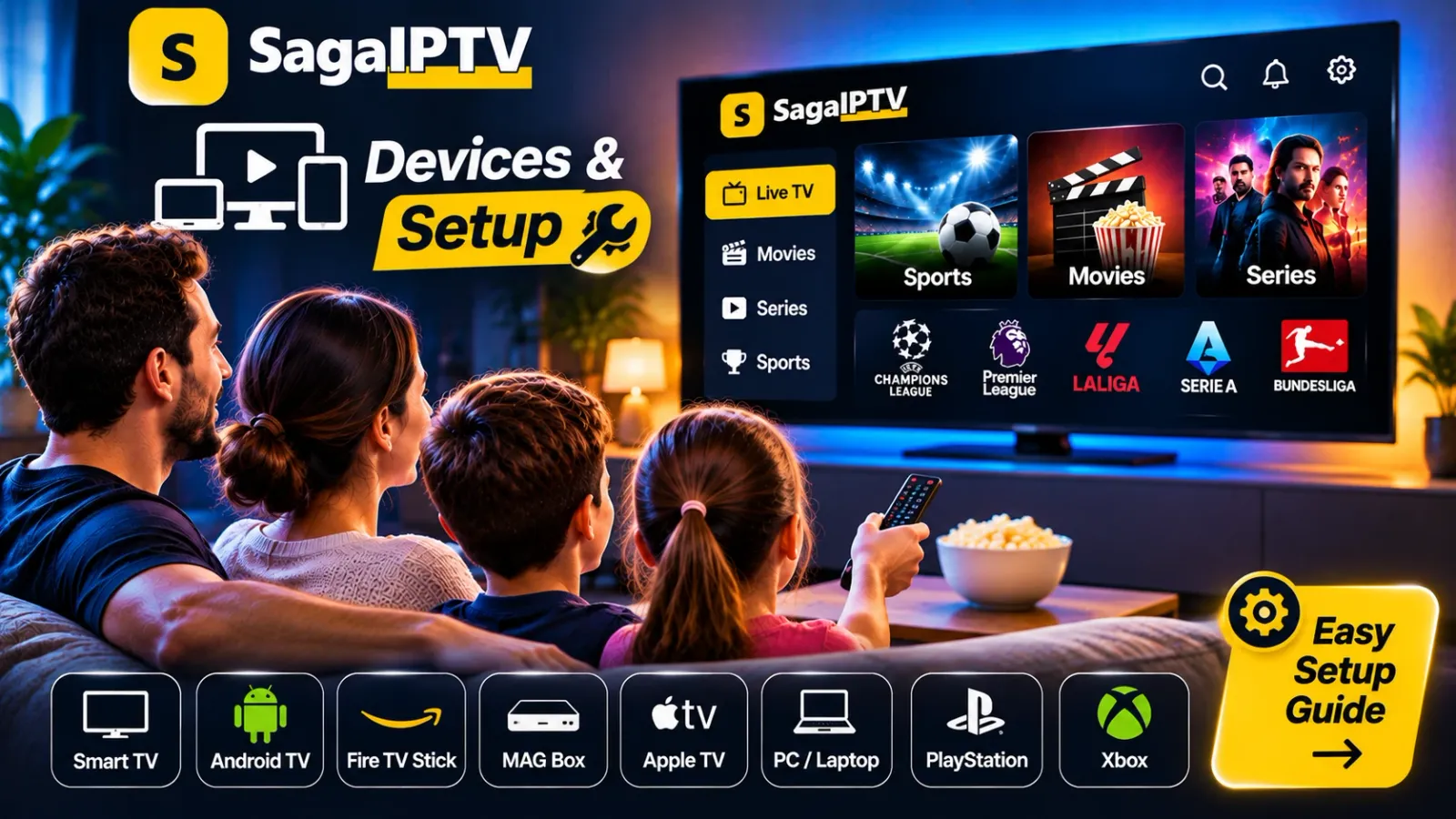
Three details decide it
- Brand and exact model – the model number on the back of the TV, for example.
- Operating system and version – TV brands run their own systems, and older versions sometimes lack newer apps.
- The app store – which apps you can install depends on the store on the device and the country it is set to.
What to check on different devices
| Device type | Check | Read more |
|---|---|---|
| Samsung Smart TV | Model year and software version | Samsung guide |
| Android TV / Google TV | Android version and access to Google Play | Android TV guide |
| Amazon Fire TV | Model, generation and Amazon account region | Fire TV guide |
| Phone and tablet | Operating system version | Compatibility |
| Computer | Browser and operating system | Compatibility |
The table shows what to find out – it is not a promise that a particular device is supported. You get that answer from us once we have seen your details.
How to get an answer
Press the button, add the brand and model to the message and send it. We reply on whether the device can be used and, if so, which app applies. Not bought a device yet? Ask before you shop and avoid a wasted purchase.
Smart TV, box or stick – which should you use?
| Built-in smart TV | External box or stick | |
|---|---|---|
| Extra hardware | None | One small device and a free HDMI port |
| Updates | Depend on the age and maker of the TV | Usually updated for longer |
| Moving it | Fixed to that TV | Easy to move to another TV or take along |
| If it is not supported | You need another solution | Often the simplest fix for an older TV |
Neither is better in general. If your TV is recent and supported, the built-in route means one remote and no extra box. If the TV is older, an external device is usually cheaper than a new television – but ask us about the model before you buy it.
Checklist before you buy a new device
- Write down the exact model name and number.
- Send it to us and wait for the answer.
- Check that the shop allows returns.
- Check that your TV has a free HDMI port and that a power socket is nearby.
- Decide how it will be connected: Wi-Fi, or a network cable if the device has a port.
One account, several devices
You can ask us how to move your account from one device to another. Keep in mind that one account plays on one screen at a time: for a TV in the living room and another in the bedroom running together, you need two accounts.
Once your device is cleared
The next step is Setup, where we describe how to get started. Keep the connection in mind too: a good device is little help if the Wi-Fi signal is weak. See Wi-Fi or Ethernet for streaming.